The Payment Gateway for PayPal Pro & PayPal Checkout for WooCommerce plugin lets you sell subscription products with recurring payments through PayPal Checkout. You can set a recurring price, choose a billing interval, offer a free or paid trial, and manage subscriptions from your WordPress dashboard.
This guide takes you through setup, subscription product creation, customer checkout, and subscription management.
1. Before you begin
Make sure you have:
- WooCommerce and our PayPal Gateway Addon for WooCommerce is installed and activated.
- A PayPal merchant account for receiving payments, with the appropriate PayPal Checkout API credentials.
- An HTTPS website that PayPal can reach to deliver webhook notifications.
- Your WooCommerce currency, tax settings, and shipping methods configured for the products you sell.
You can use sandbox mode to test the complete subscription flow before accepting live customers.
2. Configure PayPal Checkout
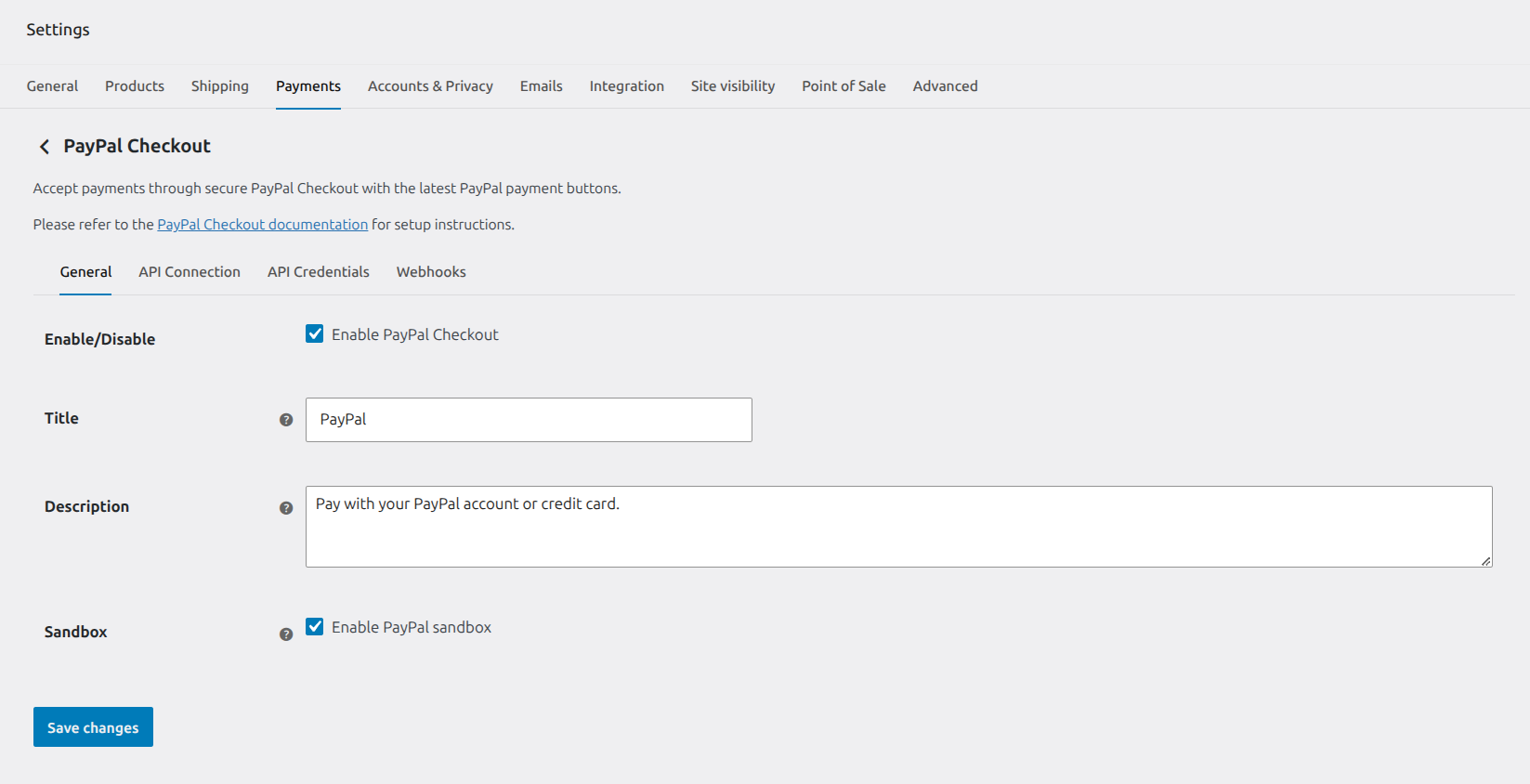
Go to WooCommerce → Settings → Payments and open PayPal Checkout.
Enable the gateway
In the General tab:
- Select Enable PayPal Checkout.
- Enter a Title. This is the payment method name customers see at checkout, such as “PayPal Subscription Payments”.
- Enter a Description for customers.
- Select Enable PayPal sandbox while testing. Turn it off when you are ready to accept live payments.
- Save your changes.
Connect your account or enter API credentials
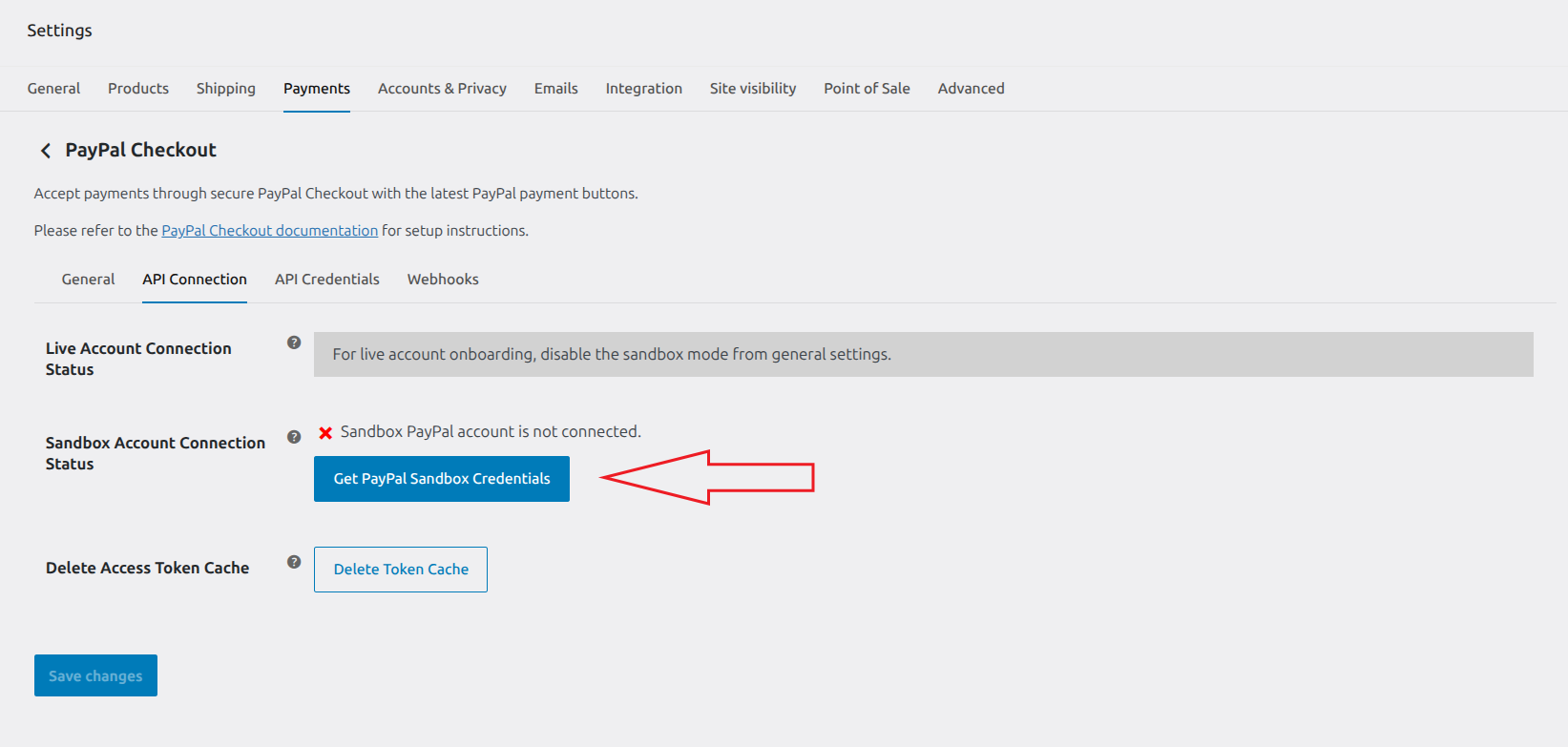
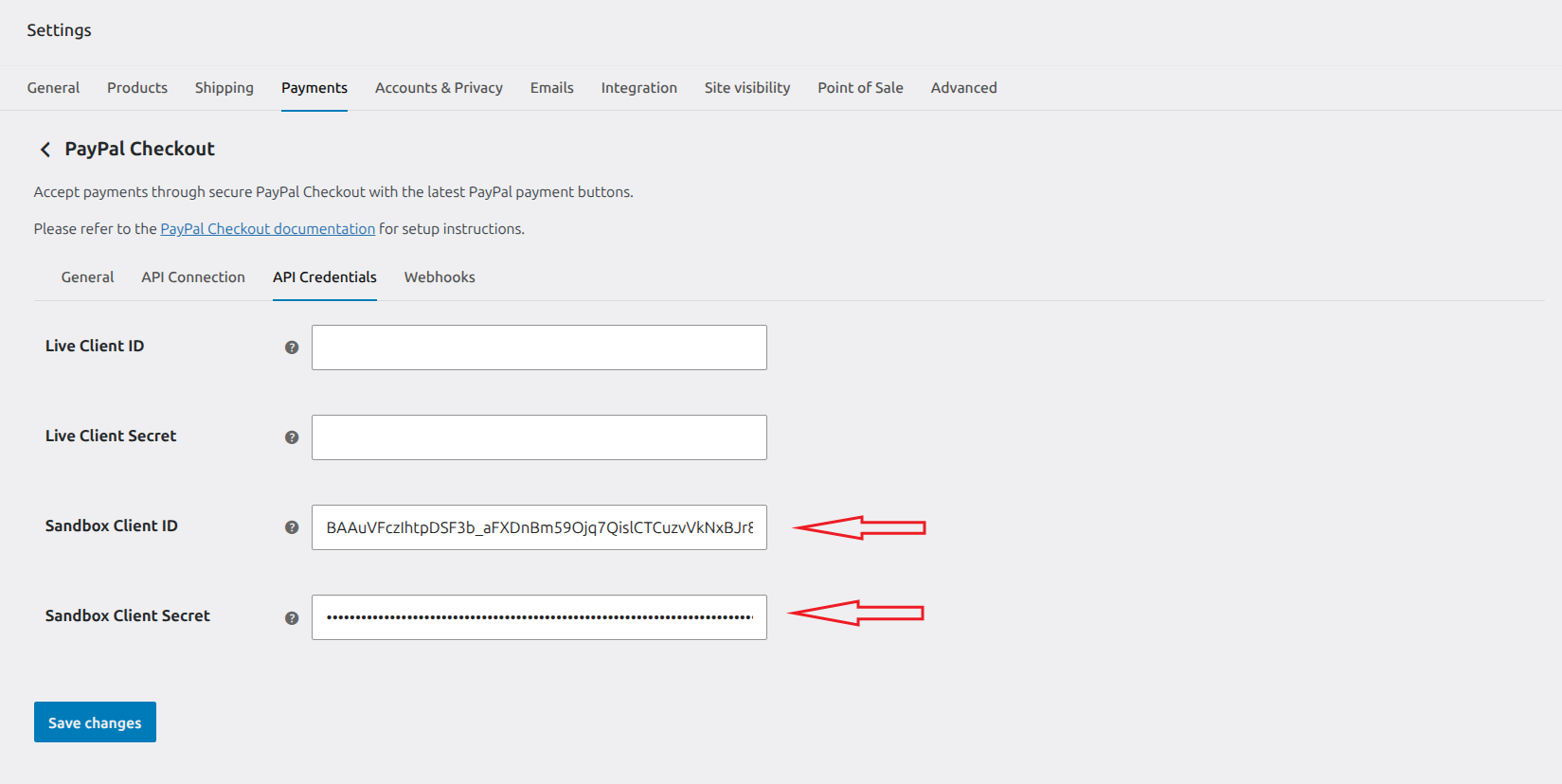
You can obtain credentials using either of these methods.
- Connect through the plugin: Open API Connection, select Get PayPal Sandbox Credentials or Get PayPal Live Credentials, and complete the PayPal connection process. Return to the settings and check that the credentials for that environment are populated.
- Enter credentials manually: Open API Credentials and enter the matching Client ID and Client Secret. Save your changes. The selected sandbox setting determines which credentials the plugin uses.
PayPal generates separate Client ID and Secret credentials for sandbox and live REST applications.
Configure webhooks
Webhooks notify your store about subscription payments, refunds, and changes such as cancellation or suspension. They keep the WooCommerce records synchronized with PayPal.
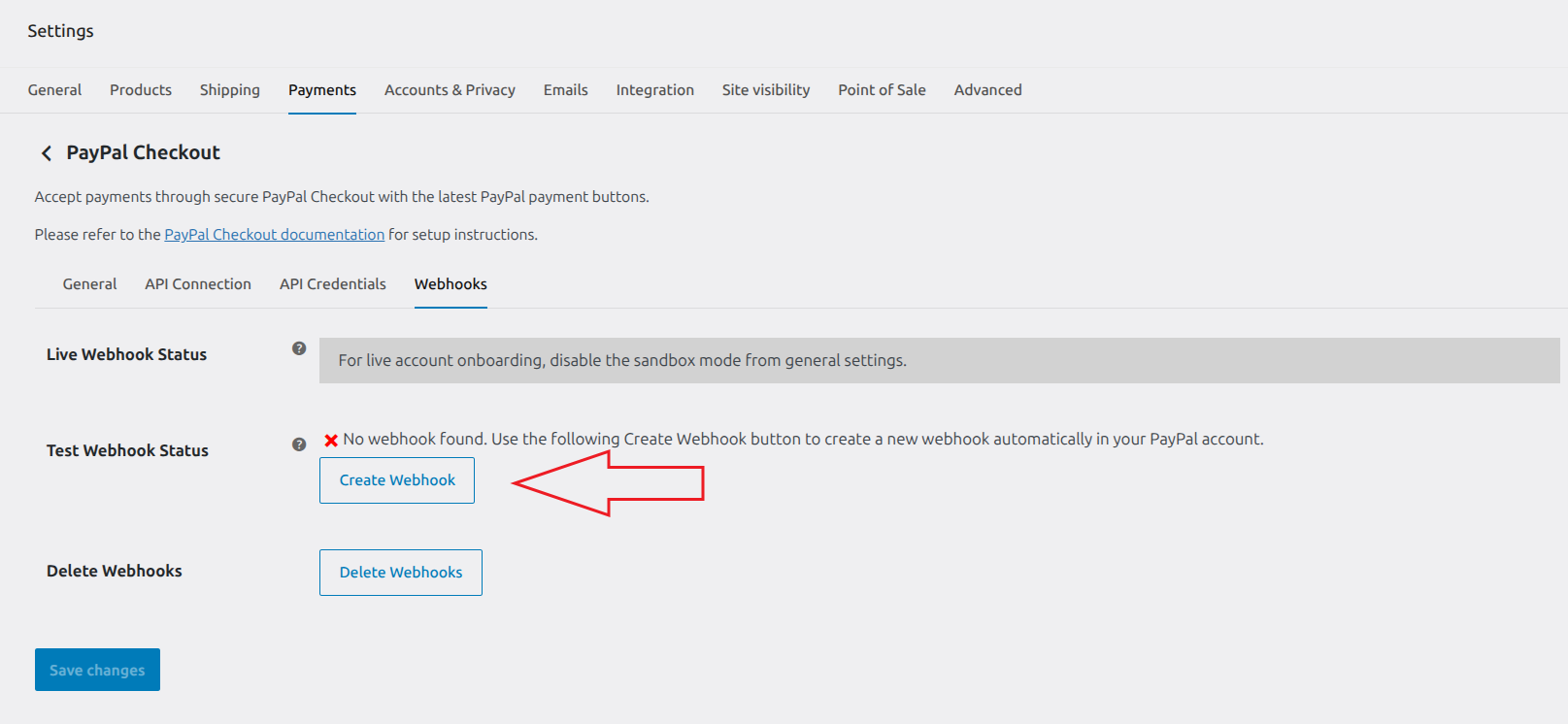
- Open the Webhooks tab in the PayPal Checkout settings menu.
- Wait for the webhook status check to finish.
- Check Test Webhook Status when using sandbox, or Live Webhook Status when using live mode.
- If a webhook is missing, select Create Webhook for that environment.
- Confirm that the status reports that the webhook exists.
The plugin creates the webhook and registers its required events. You do not need to enter an event list manually.
A missing webhook configuration can prevent subscription checkout and display a notice. Complete webhook setup before publishing your subscription products.
3. Create a subscription product
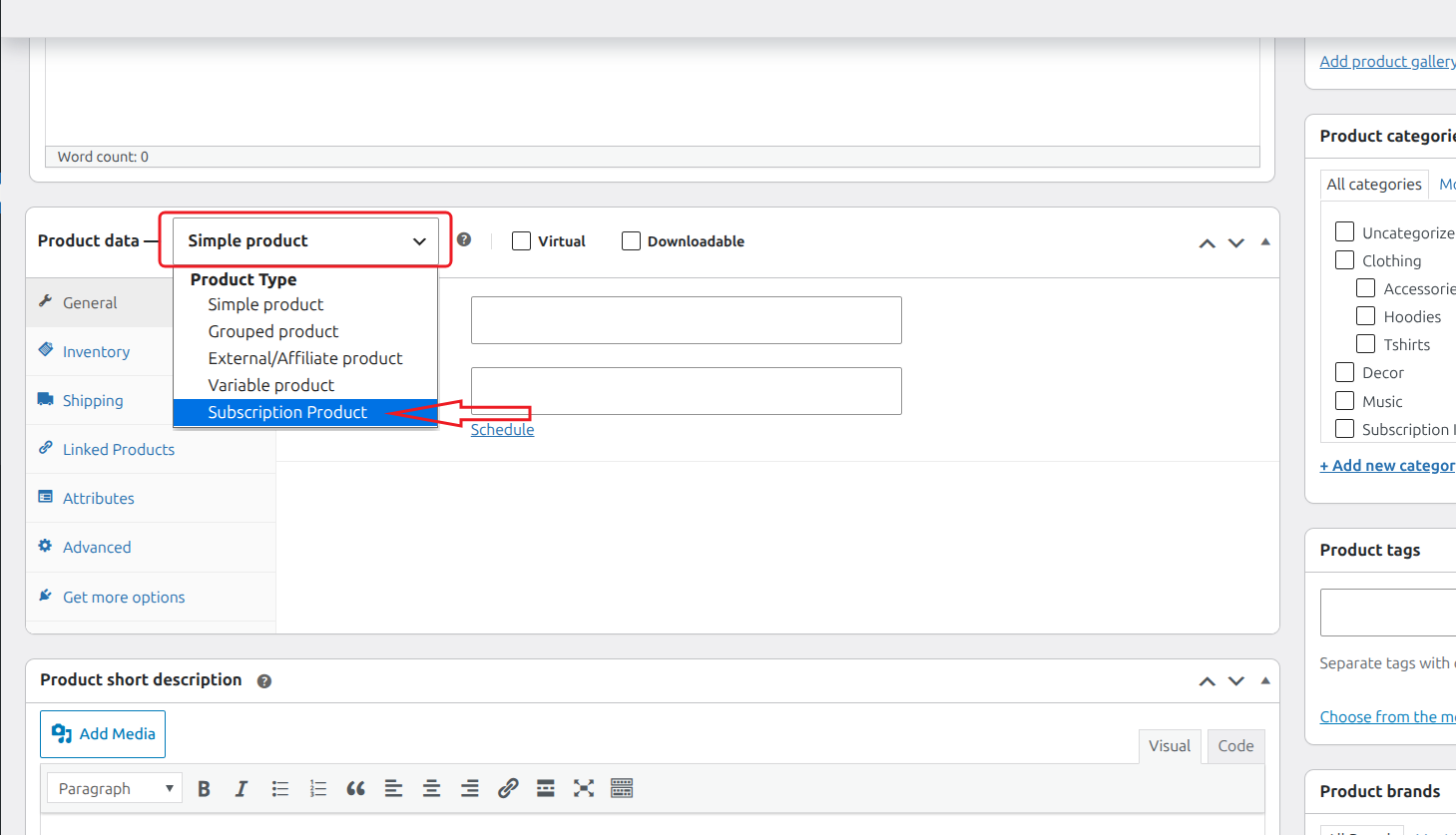
Go to Products → Add New. Enter the product name, description, and images, then select Subscription Product from the Product data dropdown.
For a product that does not require shipping, select Virtual. For a physical subscription, configure shipping information and make sure your shipping methods cover the customer’s address. Set inventory availability as appropriate.
Set the pricing plan
Configure the subscription fields in the product’s General settings:
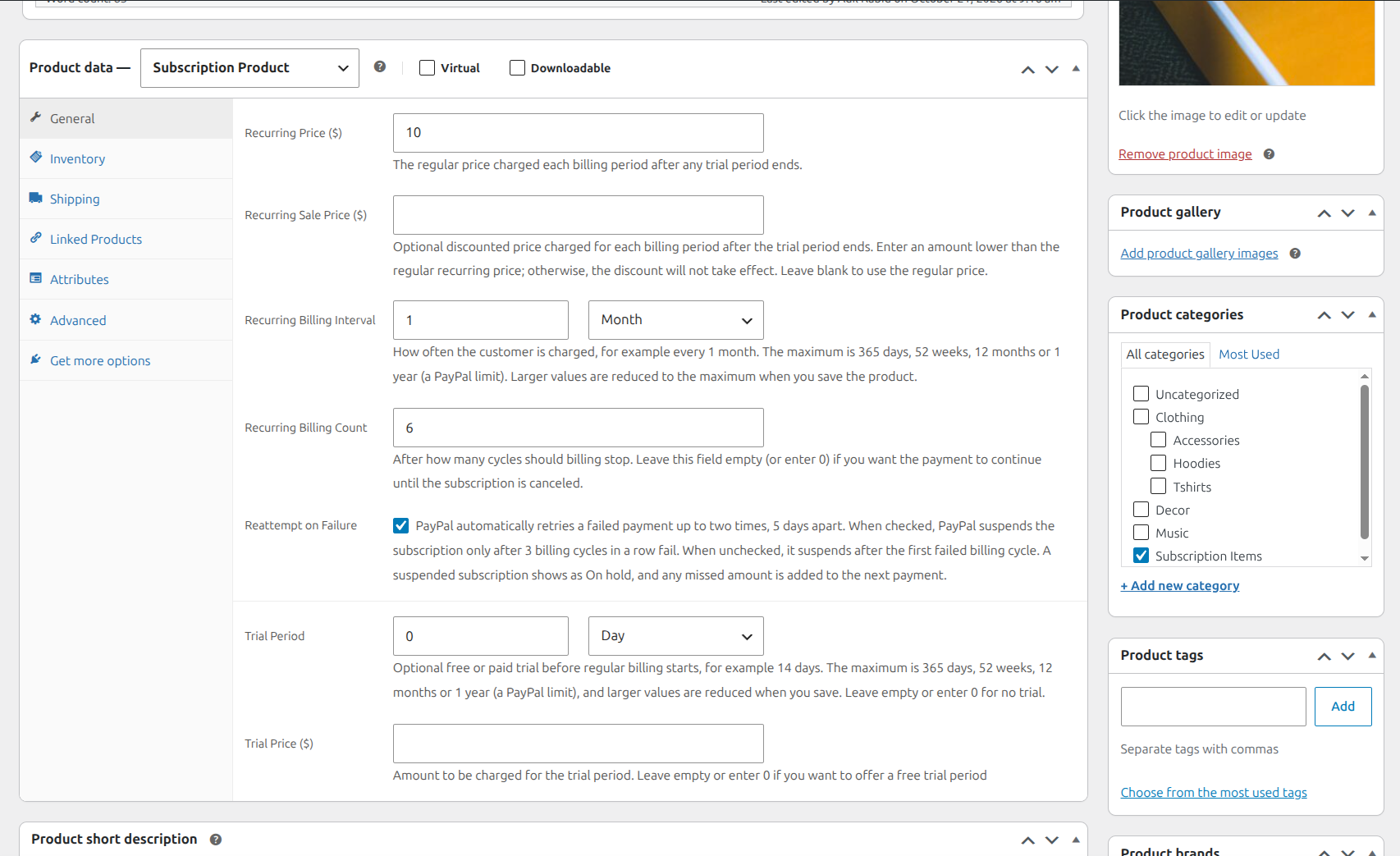
| Recurring Price | The base product price for each regular billing cycle. |
| Recurring Sale Price | An optional discounted recurring price. Enter an amount below the regular recurring price, or leave it empty. |
| Recurring Billing Interval | How often to bill: a number and a unit (days, weeks, months or years), for example every 3 months or every year. The maximum is 365 days, 52 weeks, 12 months or 1 year (a PayPal limit). |
| Recurring Billing Count | The number of regular billing cycles before billing ends. Leave it empty (or 0) for billing that continues until cancelled. |
| Reattempt on Failure | Controls when PayPal suspends a subscription after failed payments. Checked: after 3 failed billing cycles in a row. Unchecked: after the first failed billing cycle. See the payment-failure note below. |
| Trial Period | An optional trial duration, such as 14 days. Leave the duration empty or set it to 0 for no trial. |
| Trial Price | The price for the whole trial period. Any applicable tax and shipping are added at checkout. Leave it empty or set it to 0 for a free trial. This field applies only when a trial period is configured. |
The recurring billing count applies to the regular billing cycles; an optional trial is a separate period. For example, a trial followed by six monthly payments uses a recurring billing count of 6.
The recurring billing interval and trial period can be at most 365 days, 52 weeks, 12 months or 1 year. Larger values are reduced to the maximum when you save the product.
Payment-failure note: If a payment fails, PayPal retries it automatically up to two times, 5 days apart. If the retries also fail, that billing cycle counts as failed. Checked: PayPal suspends the subscription after 3 failed billing cycles in a row. Unchecked: it suspends after the first failed billing cycle. A suspended subscription shows as On hold, and any missed amount is added to the customer’s next payment. See PayPal’s payment-failure guidance.
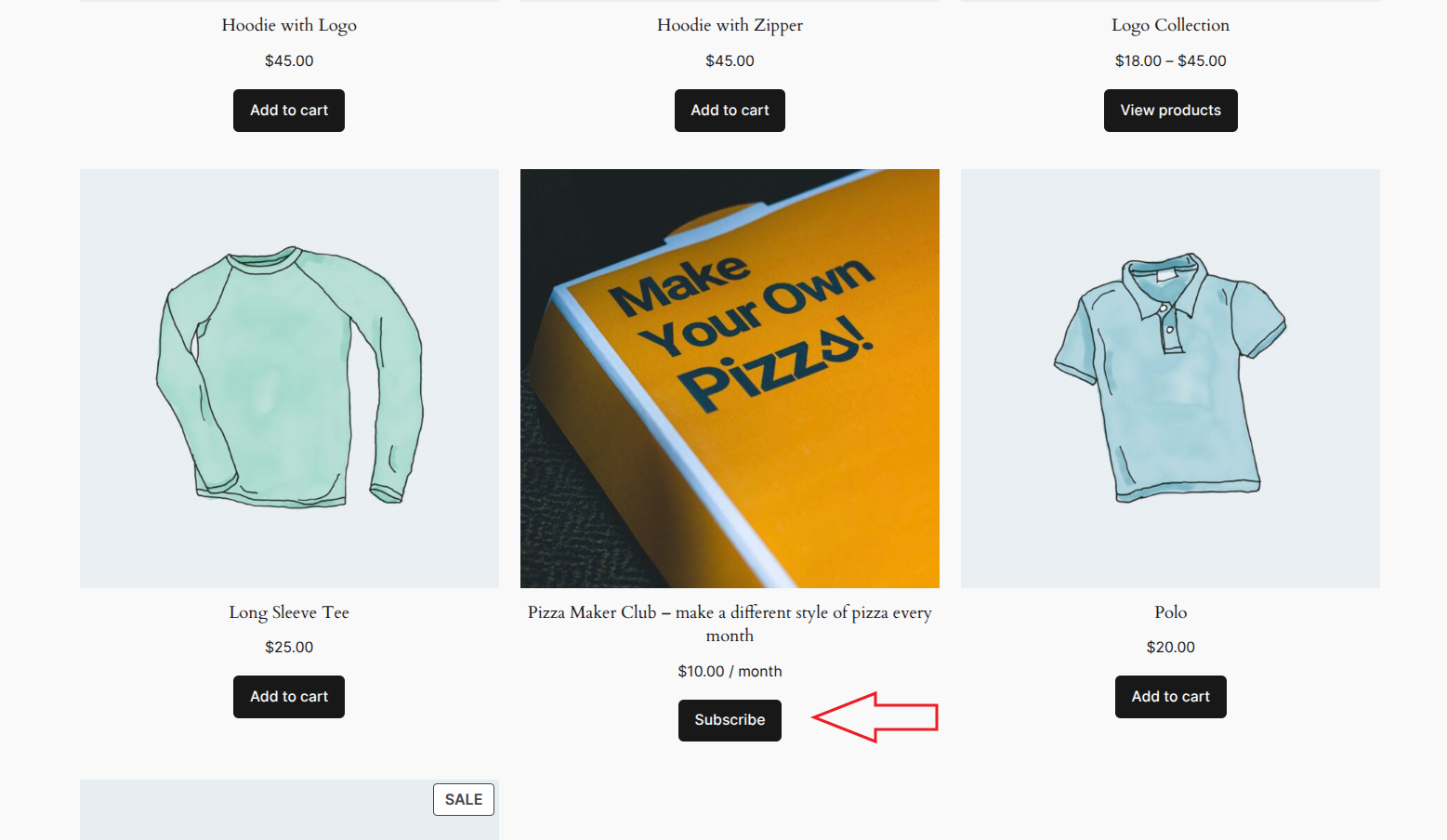
Select Publish or Update, then view the product. Check the displayed pricing plan and the Subscribe button.
NOTE: The plugin prepares the PayPal billing plan during checkout. You do not need to create a separate plan manually in PayPal. Changing a product’s pricing later affects new subscription checkouts. It does not automatically change the billing agreement of a customer who has already subscribed.
What each payment includes
When the customer checks out with a subscription product, the plugin calculates the payment amounts using WooCommerce’s applicable prices, taxes, shipping charges, coupon discounts and other fees.
- Without a trial: The checkout total becomes the amount charged for each regular billing cycle.
- With a trial: The initial total is calculated using the trial price. The recurring total is calculated separately using the recurring price, or the recurring sale price when applicable. Taxes, shipping, discounts and fees are calculated for each total, so their amounts may differ between the trial and regular billing periods.
Coupons and recurring payments: Eligible coupons are included in these calculations. Any discount included in the recurring total continues to apply to future regular payments; it is not limited to the first payment.
4. Supported gateways and customer checkout
Subscription products use this plugin’s PayPal Checkout (PPCP) gateway. The separate PayPal Pro gateway and other WooCommerce payment gateways are not offered for these subscription purchases.
What the customer does
- Opens the subscription product and clicks Subscribe.
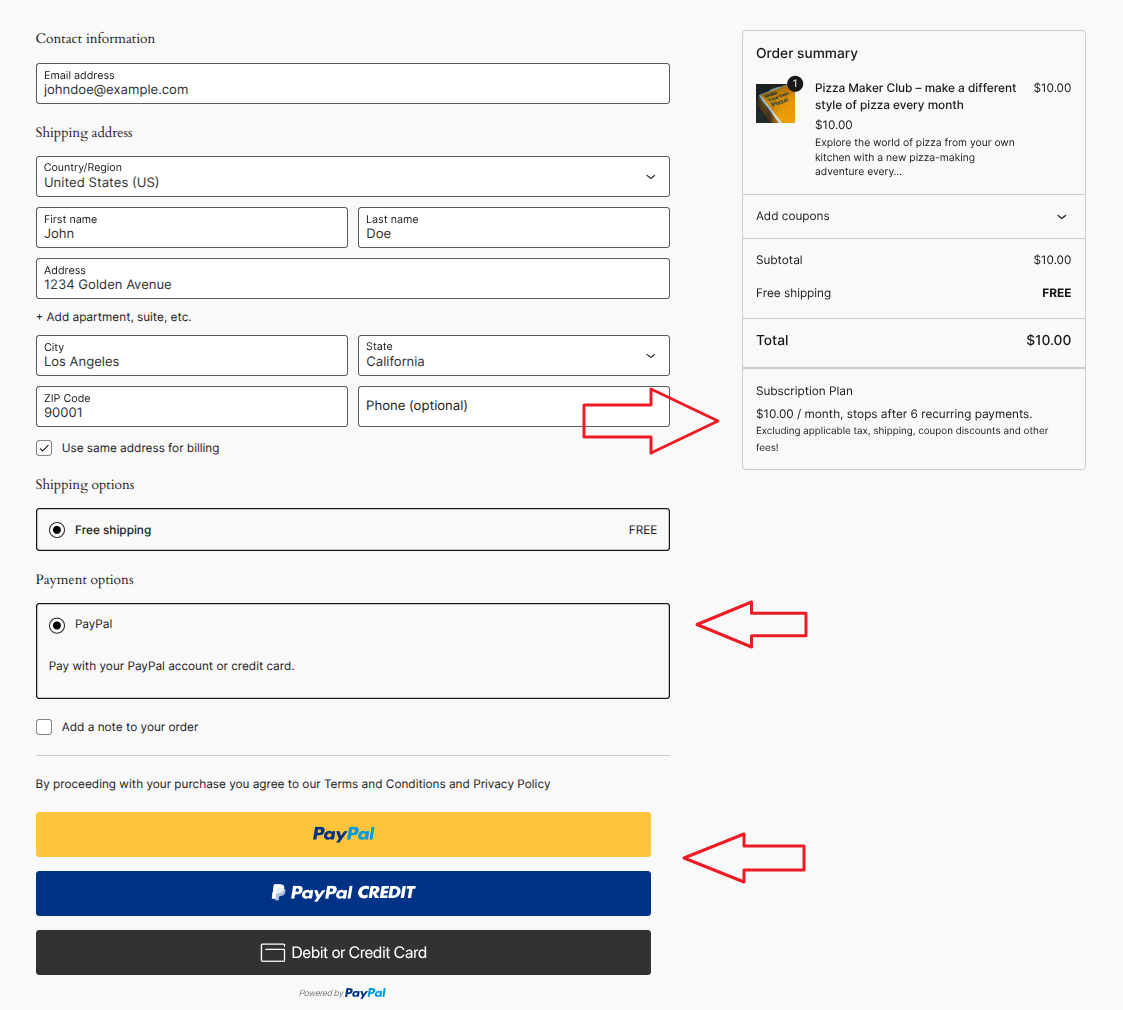
- Proceeds to checkout and enters their contact and billing information, plus shipping details when required.
- Selects an available shipping method for a physical product.
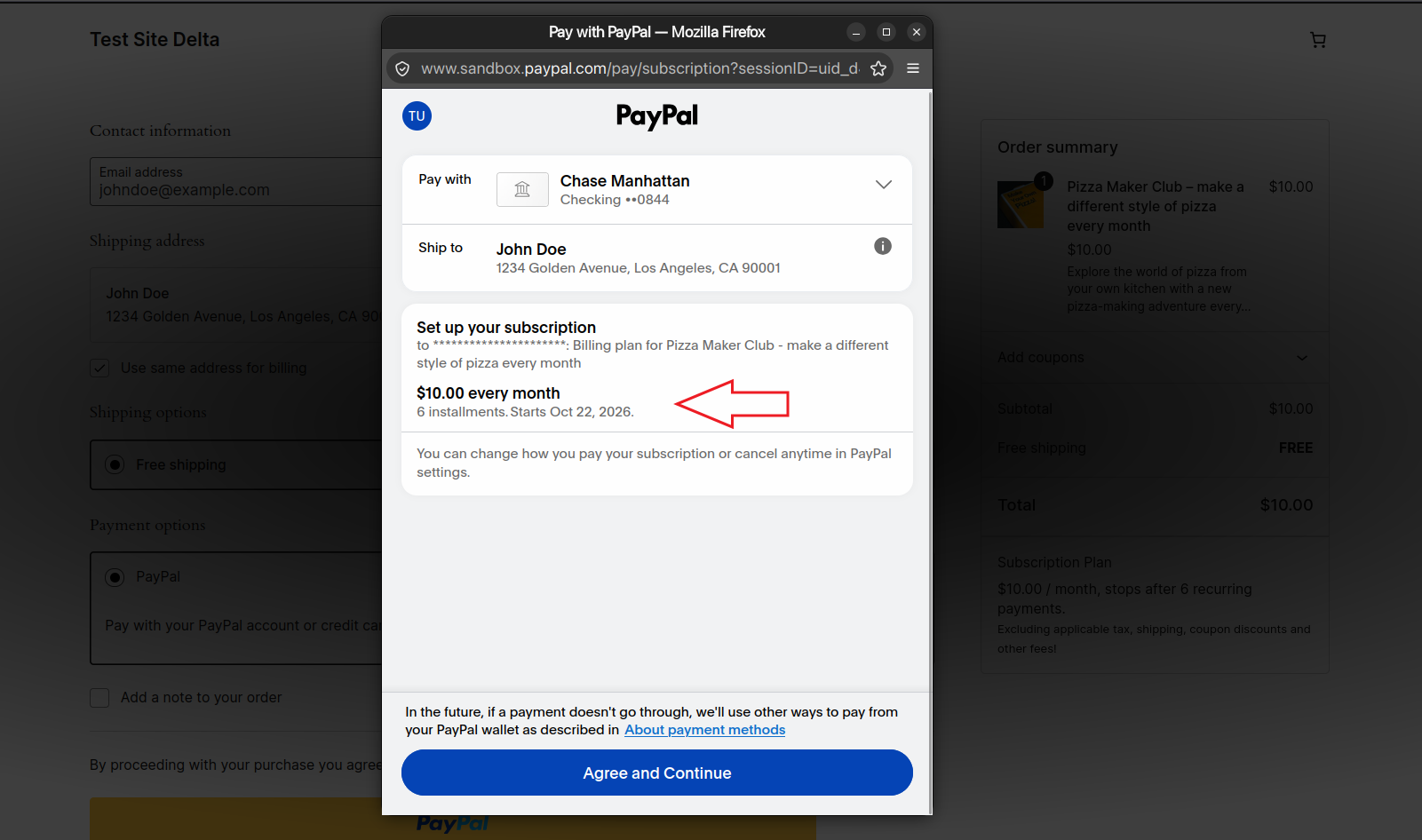
- Reviews the amount due now and the Subscription plan description below the order summary.
- Selects the PayPal button and completes the subscription approval in PayPal.
- Returns to the store’s order confirmation page.
Even when nothing is payable immediately, a free-trial subscription still requires PayPal approval so future payments can be collected.
Cart restrictions
A subscription checkout contains one subscription product with a quantity of one. Customers purchase other products separately.
Adding a subscription removes other items from the cart. Adding other product types removes the subscription. A subscription can’t be bought together with other products.
5. Manage subscriptions and their payment orders
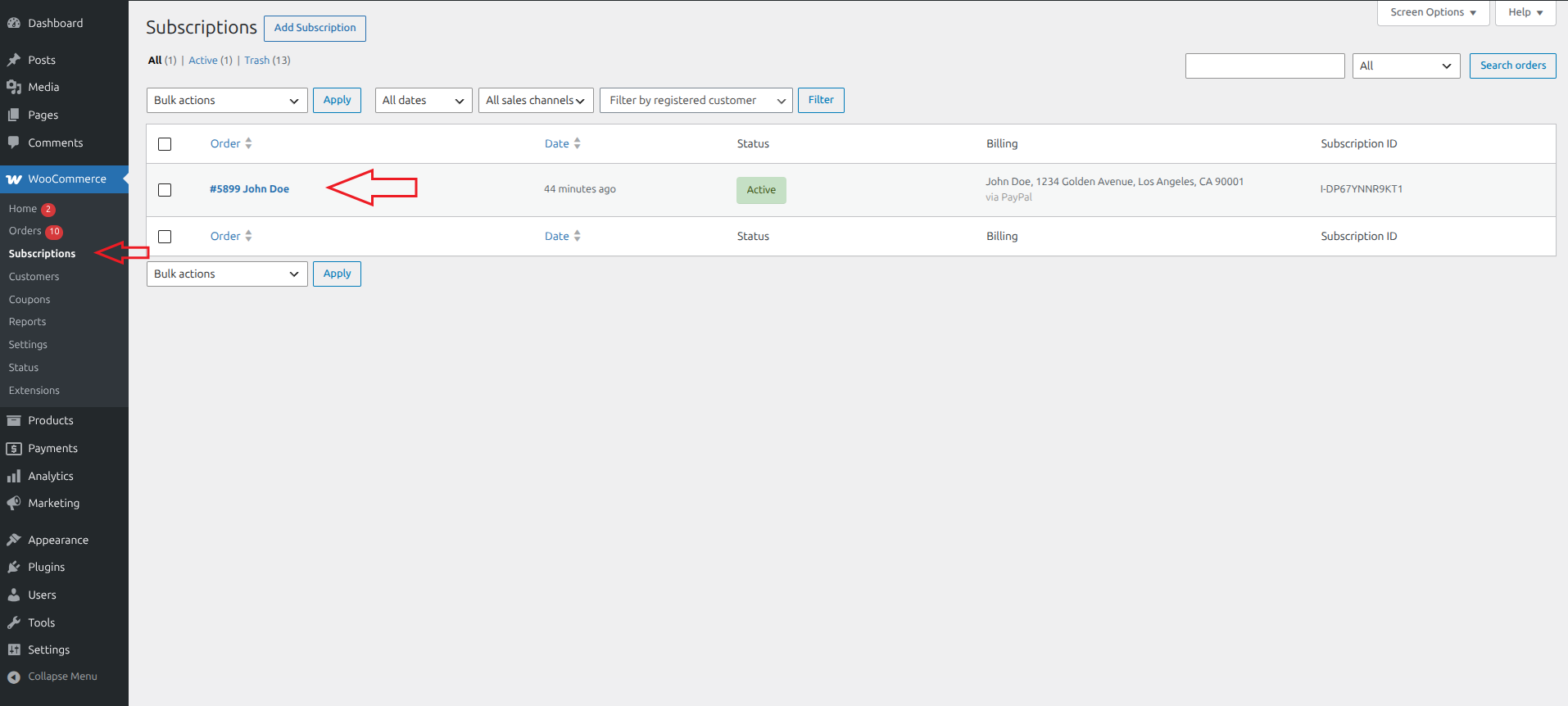
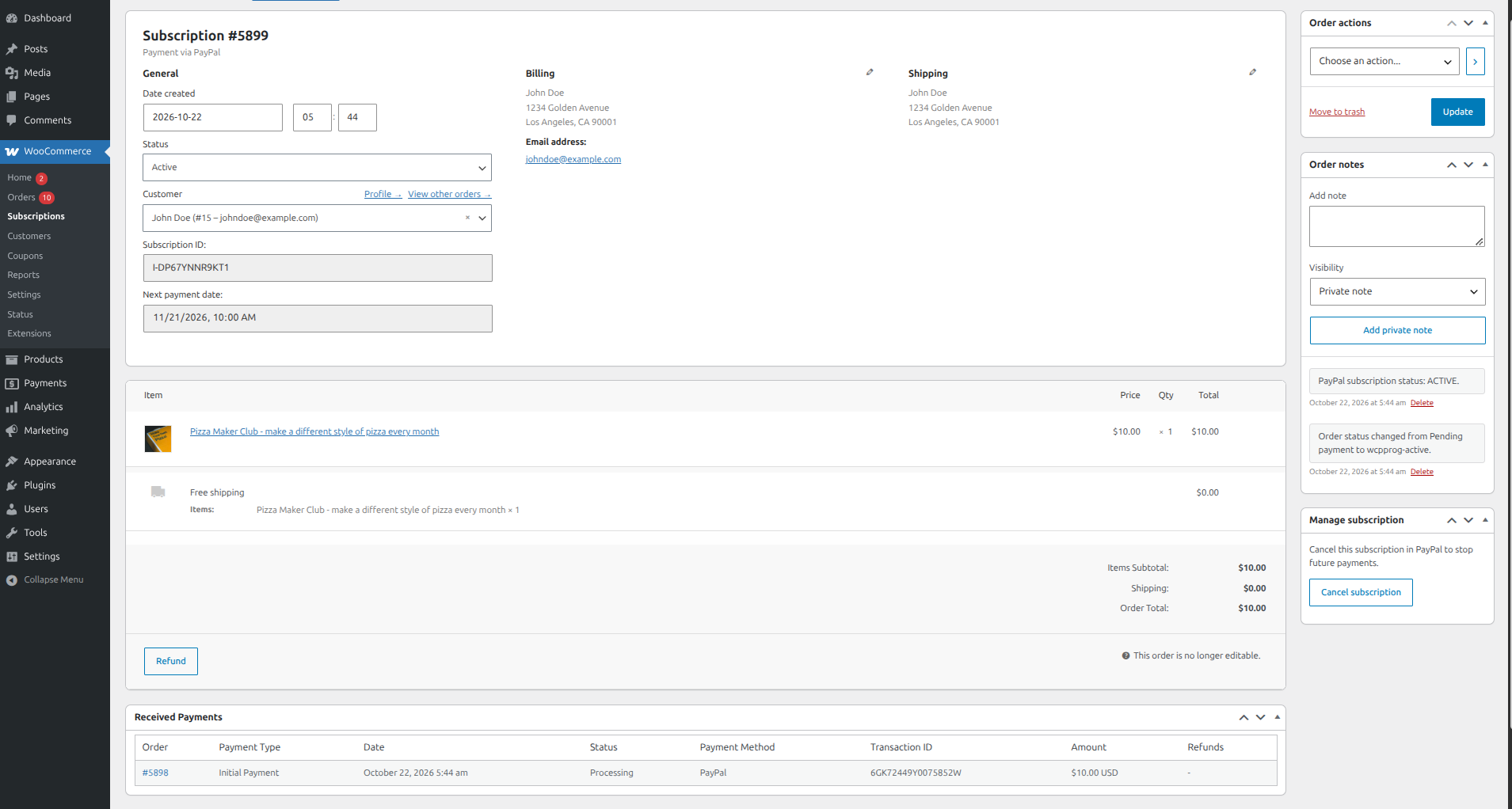
Open WooCommerce → Subscriptions to find and manage subscription records. Open WooCommerce → Orders to manage the individual payment orders related to that subscription.
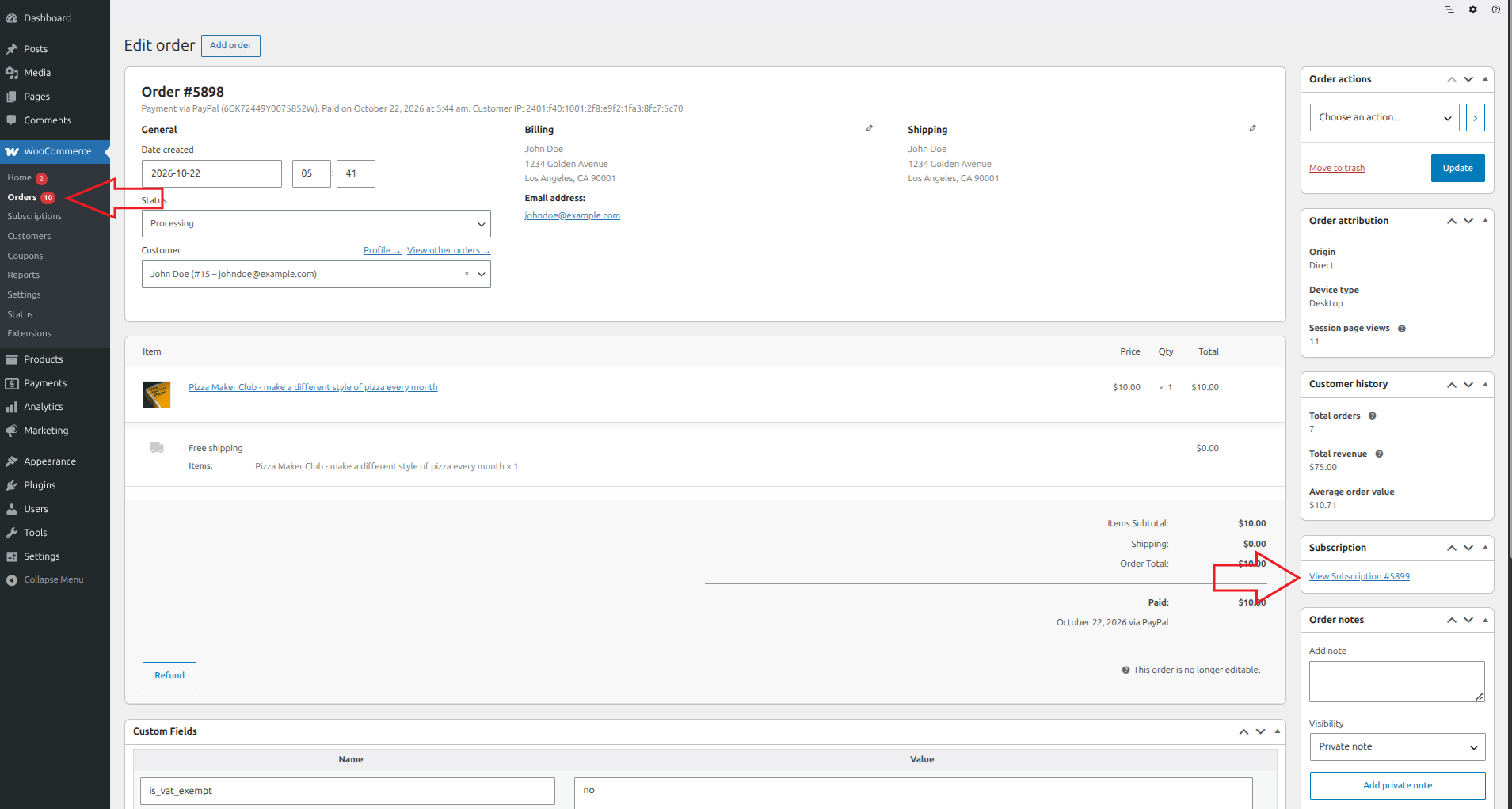
On a linked payment order, the Subscription metabox provides a link back to its subscription record.
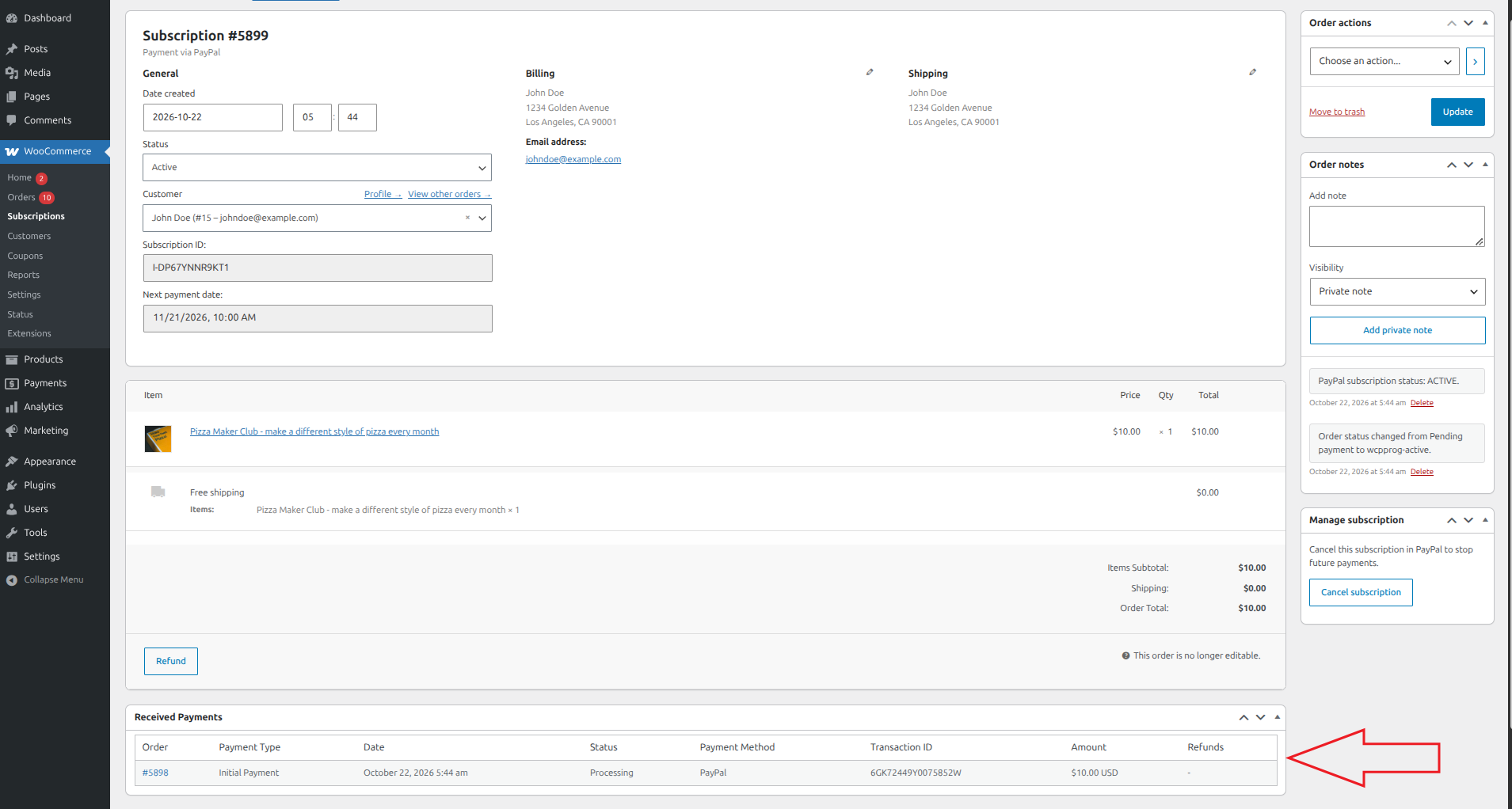
Received Payments
The Received Payments table shows:
- Order number and whether it is an initial or recurring payment.
- Payment date and order status.
- Payment method and transaction ID.
- Amount and currency.
- Recorded refunds, including their amount, date, and reference.
Payments are listed newest first. Open an order link to view its full details. Unpaid orders and zero-value trial orders are not listed as received payments.
Refunds
Issue refunds from your PayPal account. When you refund a subscription payment in PayPal, the refund syncs to WooCommerce automatically. It’s added to the payment order and shown in the subscription’s Received Payments table. Chargebacks and payment reversals sync the same way.
Important: for PayPal Checkout orders, WooCommerce only offers Refund manually. That records a refund in WooCommerce but does not send any money back to the customer. Always issue the refund in PayPal.
Refunding a payment doesn’t cancel the subscription. To stop future payments, cancel the subscription as well (see “Cancel a subscription”).
Renewals
You don’t need to do anything for renewals. Each time PayPal charges the customer, the plugin automatically creates a new order under WooCommerce → Orders. The order is linked to the subscription and appears in its Received Payments table as a “Recurring Payment”. The subscription’s next payment date is updated at the same time.
If the subscription has a trial, its status changes from Trialing to Active when regular billing begins.
Subscription statuses
- Trialing: the subscription is in its trial period.
- Active: billing normally.
- On hold (subscription): suspended in PayPal, usually after failed payments (see “Reattempt on Failure”). No payments are taken while it’s on hold.
- Cancelled: cancelled by you, the customer, or in PayPal. No further payments will be taken.
- Expired: a subscription with a fixed number of payments (Recurring Billing Count) has completed them all.
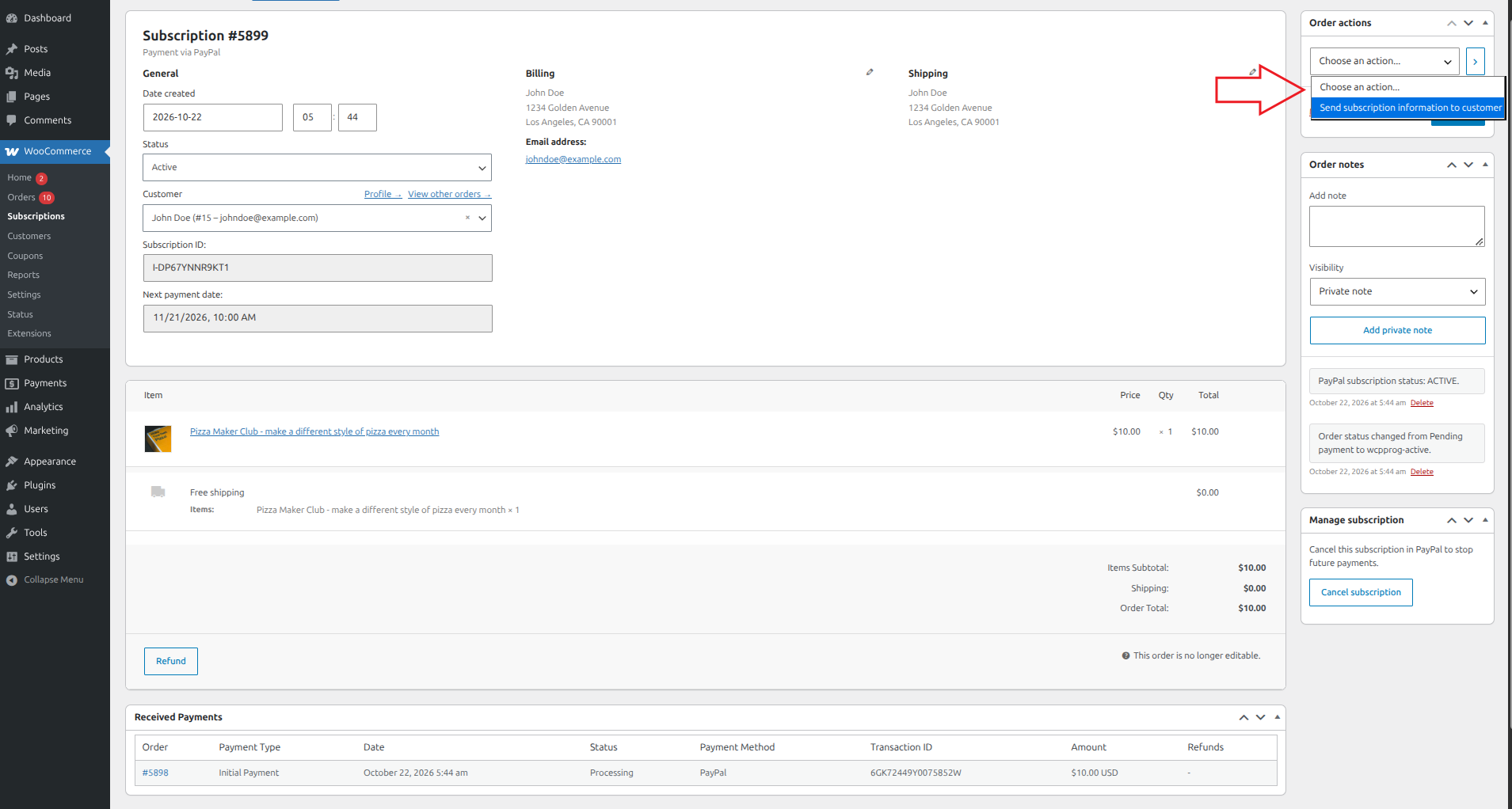
Send subscription information to a customer
- Open the subscription record.
- In Order actions, select Send subscription information to customer.
- Select Apply.
- Check the order notes for the send result.
The message is sent to the subscription’s billing email address. It includes the gateway’s configured title, subscription ID and status, plan description, billing interval, next payment date when applicable, subscription items, customer information, and Received Payments history.
Check the billing email and address details before sending. A missing or invalid email address, or a mail-sending failure, is reported in the administration screen and order notes.
6. Cancel a subscription
To stop future subscription payments:
- Go to WooCommerce → Subscriptions and open the subscription.
- Find the Manage subscription metabox.
- Select Cancel subscription and confirm the prompt.
- Wait for the request to finish and check that the subscription shows Cancelled.
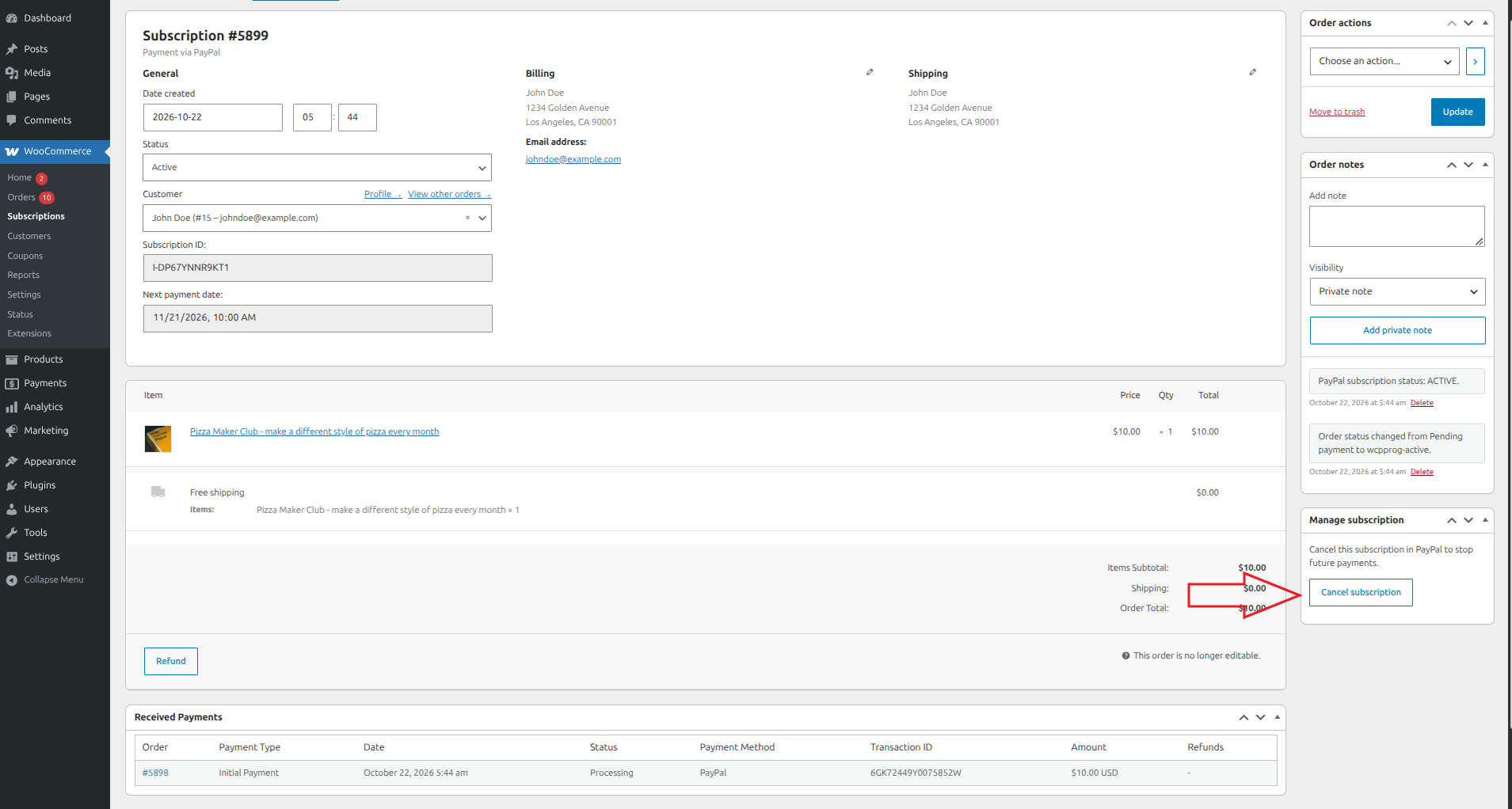
This action contacts PayPal to cancel the subscription. It is available for eligible subscriptions with a saved PayPal subscription ID. If cancellation cannot be confirmed, review the message and order notes before retrying.
Use the cancellation action to stop billing. Deleting a WooCommerce record or manually changing a local status is not a substitute for cancelling the PayPal agreement.
Changes made in PayPal: If the customer cancels the subscription from their PayPal account, or you cancel or suspend it from your PayPal account, the subscription’s status updates in WooCommerce automatically. This relies on the webhook described in “Configure PayPal Checkout“, so make sure it exists.
Cancellation stops future billing; it does not refund payments already collected. Handle any refund separately against the relevant payment order.
7. View and manage subscriptions from front-end customer account
Go to My Account → Subscriptions to see all of their subscriptions.
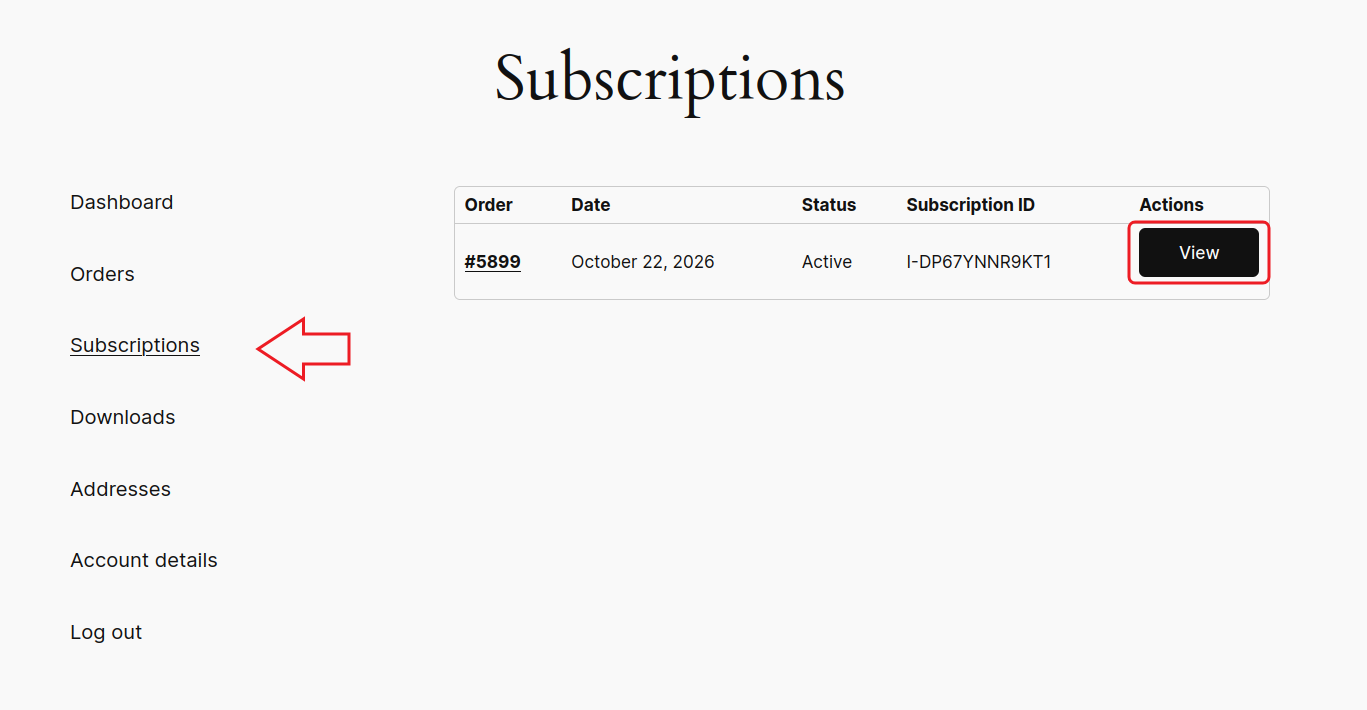
Click the View button to see the subscription details. A customer can also cancel the subscription from here as well.
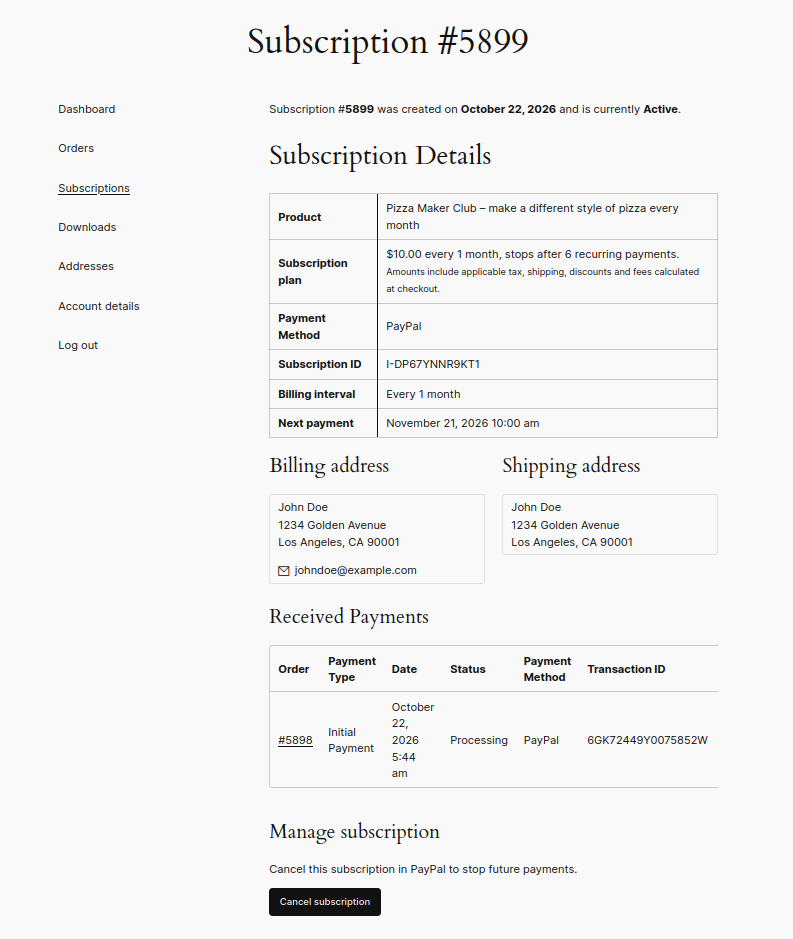
NOTE: Customers must log in to the WooCommerce account used to purchase the subscription to view or cancel it here. Subscriptions purchased as a guest are not automatically linked to an account with the same email address. Guest customers can cancel through their PayPal account or contact the store for help.
8. Troubleshooting
- Subscription checkout shows a webhook notice or doesn’t work: go to WooCommerce → Settings → Payments → PayPal Checkout → Webhooks and check the webhook status for the mode you’re using (test or live). If the status shows the webhook is missing, click Create Webhook. If it exists but payments, refunds or cancellations still don’t appear in WooCommerce, recreate it: click Delete Webhooks, then Create Webhook. Note that Delete Webhooks removes the webhooks for both test and live modes. If you use both, switch the Enable PayPal sandbox setting and create the webhook for the other mode too.
- Payments, refunds or cancellations aren’t showing in WooCommerce: this almost always means the webhook is missing or was deleted in PayPal. Check the Webhooks tab as above.
- Check the logs: go to WooCommerce → Status → Logs and choose the log source woo_pp_pro. The plugin records its PayPal activity and any errors there.
- A payment order is “On hold” with a “Review required” note (this is the order’s status, not the subscription’s): PayPal charged an amount different from the expected recurring total, for example a missed payment collected together with the next one, or a price change. The payment has been received; don’t charge the customer again. Check the amount against the subscription, adjust the order if needed, then complete it.
9. Limitations
- One subscription per order, with a quantity of 1. Subscriptions can’t be bought together with other products.
- Subscriptions can only be paid with PayPal Checkout.
- Customers can’t upgrade, downgrade or switch plans. Cancel and subscribe to the new product instead.
- Changing a product’s price or billing settings affects new subscriptions only. Existing subscribers keep their original terms.
- Next payment dates are set by PayPal and can’t be edited in WooCommerce.
- PayPal’s interval limits apply: the billing interval and trial period can be at most 365 days, 52 weeks, 12 months or 1 year.
- This feature is separate from the WooCommerce Subscriptions plugin. PayPal Checkout isn’t offered for products created with WooCommerce Subscriptions. If both plugins are active, you’ll see two “Subscriptions” menus under WooCommerce: one for each plugin.
10. For developers
Changing the My Account URL
By default, customers manage their subscriptions at /my-account/wcppprog-subscriptions/. To use a different address, add this to your theme’s functions.php or a small custom plugin:
 add_filter( 'wcppprog_subscriptions_endpoint_slug', function () {
     return 'my-subscriptions';
 } );
The new address works straight away. There’s no need to re-save permalinks.