
WordPress iSell Photo plugin allows you to sell photos/prints/images from your WordPress powered site easily. It gives you the flexibility of creating a digital photo store in WordPress without using a single heavy-weight and hard to setup plugin.
Plugin Description
WP iSell Photo plugin utilizes the built-in gallery feature of WordPress and helps you turn your simple photo gallery into a powerful e-commerce WordPress photo gallery.
Plugin Features
- Sell photos from your WordPress blog/site easily
- Setting up the iSell Photo plugin DOES NOT require advanced technical knowledge
- Increase your conversion with one-click PayPal checkout
- Create beautiful e-commerce photo selling gallery on your WordPress blog
How to Create a Photo Gallery in WordPress
WordPress allows you to manage all your images from the media library. You can insert these images to a post/page and create a photo gallery very easily.
Step 1) First, create a new post/page on your WordPress dashboard.This is the page where you will display your photo/image gallery.
Step 2) Look for the upload/insert media files option in the editor.
Step 3) Now select the photos/images from your computer and upload them to the media library. As you upload each photo, you will see a Gallery tab which contains the uploaded photos. Switch to that tab once you are ready to insert the gallery into your current post/page.
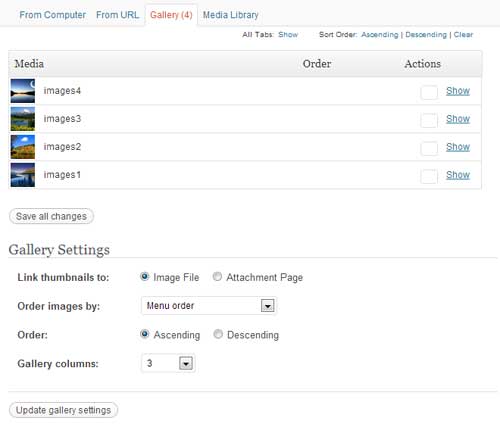
There are some options that you can configure for the gallery you just created (under the Gallery Settings section).
- Link thumbnails to: a) Image file b) Attachment Page – you can either link each thumbnail to its URL or the attachment page (the page/post you are currently editing)
- Order images by: a) Menu order b) Title c) Date/TIme d) Random
- Order: a) Ascending b) Descending
- Gallery columns: 1 – 9 ( Number of thumbnails in each row)
Step 4) Finally hit the Insert Gallery button and the gallery will be automatically inserted to your current post/page.
You can edit the gallery at any time by clicking on the gallery icon (It looks like a rectangular image in the visual editor). Alternatively you can also customize the shortcode for the gallery. You need to switch to the Text editor to do it. You will see a shortcode like the following:
[gallery ids="12,14,8,15"]
You can learn more about customizing the WordPress gallery shortcode here
How to Sell Photos Using the iSell Photo Plugin
iSell Photo Plugin Demo
We are going to convert your WordPress photo gallery into a photo selling gallery using the FREE WP iSell Photo plugin. The photo selling gallery will look like the following. This will allow your users to purchase a photo/print by clicking the “Buy” button below each photo/print.

iSell Photo Plugin Installation
- Go to the Add New plugins screen in your WordPress admin area
- Click the upload tab
- Browse for the plugin file (wp-iSell-photo.zip)
- Click Install Now and then activate the plugin
iSell Photo Plugin Configuration
Now that you have set up a photo gallery, you can turn it into a digital photo store to sell photos easily. You just need to configure some options in the General Settings of the WP iSell Photo plugin before you can start selling photos. Go to Settings->WP iSell Photo (on your WP Admin Dashboard). It will take you to the Settings page of the iSell Photo plugin.
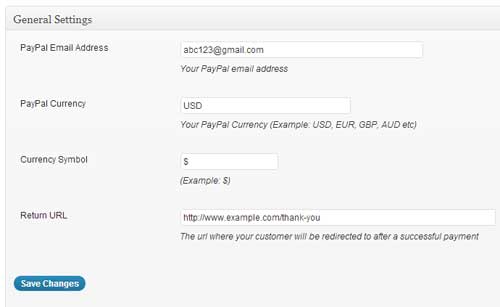
You need to configure the following options in this settings area:
- PayPal Email Address: Your PayPal email address. This is where the money will go to when someone purchase your photos
- PayPal Currency Code: The currency code (example, USD, GBP etc). You will accept money in this currency from your customers.
- Currency Symbol: The symbol for your chosen currency (example: $). It’s for display purpose only.
- Return URL: The URL where your customers will be redirected to after a successful payment. This is also known as the “Thank You” page.
iSell Photo Plugin Usage
Go to the post/page where you already have an existing WordPress gallery embedded. Add an additional amount parameter to the gallery shortcode and specify the price via this parameter. For example:
[gallery amount="3.99" ids="12,14,8,15"]
Now, each image of this photo gallery will have a Buy Now button with a price of $5.00. Basically, you are saying that I want to sell my photos for $5.00 each (you can obviously use whatever amount you feel like).
You can also customize the look and feel of the Buy Now button. Simply include a button parameter in the gallery shortcode and specify the text that you want to use in the purchase button. For example:
[gallery amount="3.99" button="Buy it Now" ids="12,14,8,15"]
The above shortcode will create purchase buttons for your photos which will have the text “Buy it Now”.
If you want to use an image for the button you can do so by specifying the URL in the button parameter. For example:
[gallery amount="3.99" button="https://www.paypal.com/en_US/i/btn/btn_buynow_LG.gif" ids="12,14,8,15"]
If you have any issues with this plugin please post it on our support forum.
Thanks for the great plug in…this is my first website and I am stumbling by pretty good…but 2 questions.
1. When you hit buy it now, it goes to paypal and enters my paypal address where the buyer should have theirs. Can this be fixed?
2. Is there a way to individually price the photos in the gallery…they all have the same price at this point, but they should be different…can’t figure how to do that…thank you!
@laura, PayPal automatically fills out the email address based on the cookie that was saved on your computer (probably because you have used PayPal from the same browser before). There is nothing wrong with it. On your buyer’s computer they will see their PayPal address. If you delete your browser cookies and visit PayPal you won’t see the email address anymore.
Unfortunately there is no way to set a price for each photo individually. This is because in the gallery shortcode you can only specify something that will be applied to all the photos of that specific gallery.
Hello…
Great and simple, but a fact is that image is always available and linked: there is no payement conditioned delivery on my side …Bug or feature ? Thanks.
@Pierre, We tried to keep the plugin lightweight for now. If we see that many users are interested in selling photos we might come up with a better version which will have the automatic delivery option.
Regarding image link, In the gallery menu there is an option to link each image to its attachment. You can try that to hide the image link.
Thanks for wonderful plugin 🙂 I would like to know does this plugin work with nextgen gallery plugin? Because I would like show slide show for images.. And yes one more thing is their any option to show variation in cart like 8in X 9in=$127, 10in X 12in = $150..
Please help
Hi, unfortunately it doesn’t have the integration option with NextGen gallery plugin. It doesn’t work with variation either (it’s a very light-weight photo selling plugin).
Hi, I like the ease of setup of the isell photo plugin but i’m looking for a way to create a list of size options to buy my images. For example, instead of just a buy now button, is it possible to have a drop down menu with say a5, a4, a3 and a different price for each? or do i need to look at a different plugin?
Thanks for your help
Hi, it’s not possible to have a different price for each photo. You will need to set a specific amount for the whole gallery. The size variation is not available either.
This is a bummer (about not having price and/or size variability). It makes this plug-in not usable by me at the moment.
Are there plans to add these features, because otherwise I really liked how it works.
There is a way, incidentally, to get different prices. You just have to enter the shortcode multiple times with a different price for each different “ids” field. The problem with that is that it then breaks the grid, and each image that is differently priced will show up on the next line (so to speak), instead of in the grid.
But I want the grid AND price (and size) variability.
Great start. But as it doesn’t have those features, I need to keep looking. (I don’t want that to take away from the fact that this is a cool-looking plug-in, though.)
Hi, thank you for a very nice plugin. I have just installed it and I have noticed that when I click on the photo to enlarge it and right click then people can still download it. Is there a way to prevent it?
Hi, It’s built on the WordPress gallery so It cannot control if the URL of the image will be shown/hidden.
wow. This is very excellent and wonderful plugin. I use my website. Thanks you very much.
HI,
I am planning to send prints to the buyer. I was wondering if I automatically receive the address of the buyer when they click the buy button?
Thanks,
When a user clicks the “Buy Now” button they get redirected to the PayPal site. After the payment PayPal will send you notification of purchase. The plugin doesn’t send you any kind of notification containing the address of the buyer.
I’ve added products, added a gallery, and set the amount & button parameters. The Buy it now button is not showing up, nor is the $ amount. How do I add products to a page? I can manually add each image with a link to paypal, but I need the buttons to show up too. What am I doing wrong?
Hi, what product are you talking about? iSell Photo plugin doesn’t have any option to add products.
I realized that if i do not specify the fee the gallery will not show up in my posts.
Is there a way/ bulk action to insert the amount that i want to charge all at once into all posts? I have more than hundreds of posts and it is impossible to do it one by one. And if I don’t do it the images don’t show up. Or is there a way to apply the plug-in to individual posts? thanks.
How do you change the enlargement size? Right now mine is coming up 900×600?
Thank you
Doug
this look like exactly what I was looking for. everything works. Click the pay button and goes to paypal. But I must be doing something wrong because you can simply click on the photos and it pops up on another page where anyone can just right click and download it without paying. Also I havent actually finished a transaction with it. Is there a popup download box to retrieve the photo after payment is made?
ok I tested it and there is no file. How do you get the product to the person that orders?
this is more of a question than comment is there anyway to secure certain photos with a password so that only certain people see them
Are you planning to add a function so that the “buy now” also works with attached images and featured images?
Not all photo sites are using the gallery option and many photo themes are using the featured image function.
I wanted to know if there is a way once a customer buys a photo to have 2 photos sent to them? I want to include a download of a high res and low res image. Or can I link the bought photo to a .zip file? If so can you let me know how before I purchase the product?
so can you please tell me where you add this to have it show an amount
[gallery amount="5.00"]
sorry but I am lost here
Sorry how do customers get the downloadable image? Where do we link the original file, which gets sent as an encrypted link in email to customers, once payment is made?
Hi, currently WP iSell Photo doesn’t automatically email the customer after the transaction. It’s something you will need to manually do after a user makes the payment.
Can I sell albums (or multiple images) using your plugin?
Hi Admin
Can you help? I am just starting out on WordPress and about build my website.
I’m looking for a suitable WordPress plugin that will integrate with my Website sell pictures automatically. I would like it to be able to do the following:
1. Give my customer buying options. Various sizes etc, depending on what is available from a particular Print Lab.
2. The option to have the photo order automatically emailed directly to a Photographic Printing Lab for processing e.g Adorama print, Loxley Colour Uk,
then sent out to the customer once the PayPal payment has gone through
3. The option to manually place the print orders my self.
This would be similar to what Smugmug offer.
I chose WordPress believing that this would be possible, with Woocommerce or a suitable plugin. but after searches I am now not sure it is.
My search has brought me to your plugin.
From what I understand this plugin is a basic selling plugin.
I was wondering if these options are something that you are considering in the future, either as an add on or a paid for plugin?
I would be grateful for your feedback.
Regards
Don
Hi, Don. A good photo selling plugin requires lots of functionality. So currently we are just maintaining the free version to make sure that it works. Have you checked the WP Photo Seller plugin? It’s probably one of the best plugins out there for selling photos from a WordPress site.
Cheers
Is there a way to add a shipping charge?
Or to add more than one item at a time?
Are you planning on them?
Hi, currently shipping option is not available. May be we will add it in the future release if possible.
plugin to rate photos?
@Jorge, rating option is still not available in WP iSell Photo plugin.
I installed the plug-in and entered the code, but the amount and text does not show up beneath the thumbnails. Is there a conflict with another plug-in that you might know of? Thank you!
Hi again, Here is the link: http://www.edesiaglobal.org/about-us/media-center/gallery/
Thank you!
Hi how can i turn this off for certain images?
Hi,
Can i activate the plugin in specific gallery? I don’t want all my gallery turn into iSell photo option.
please respond.
tq.
@lina, currently it doesn’t work with separate galleries. If you have it activated all the galleries will have selling options.
Dear Sir,
I need a plugin like isell photo but little different. For some products I have only 1 stock and multiple sometimes. So I need also stock management. If I have only one product after someone bought it, it must say sold out or similar warning. Would you please informe me about that.
REGARDS
FATIH
Is there a way to customize the buy it now button ie color round edges
Thanks
@Rich, you can create an image with round edges and specify it in the shortcode.
Hi Admin,
THe plugin is GREAT (just as i needed)
But, i realized that if i do not specify the fee the whole gallery will be invisible. Is there a way to make some gallery payable and some totally free.
I want to make few gallery totally free (but the gallery disappears) I want the gallery to appear even though it is free.
Regards.
What is the ideal size of an image?
I see a lot of space between the price text and the buy now button.
pls could you let me knw
thanks
@deepa, Images are resized by WordPress. So any size should be fine I guess.
So, I’m kinda wondering… if this plugin didn’t have an affiliate program, would you be still be writing such a glowing review about it? Just sayin.
Hi, WP iSell Photo is a free WordPress plugin.
I keep getting a red message above my gallery on my published website that says “you did not specify a price in the shortcode.” But I did, and it shows up on the Buy Now buttons…how do I get that message to go away?